“Family” money requests
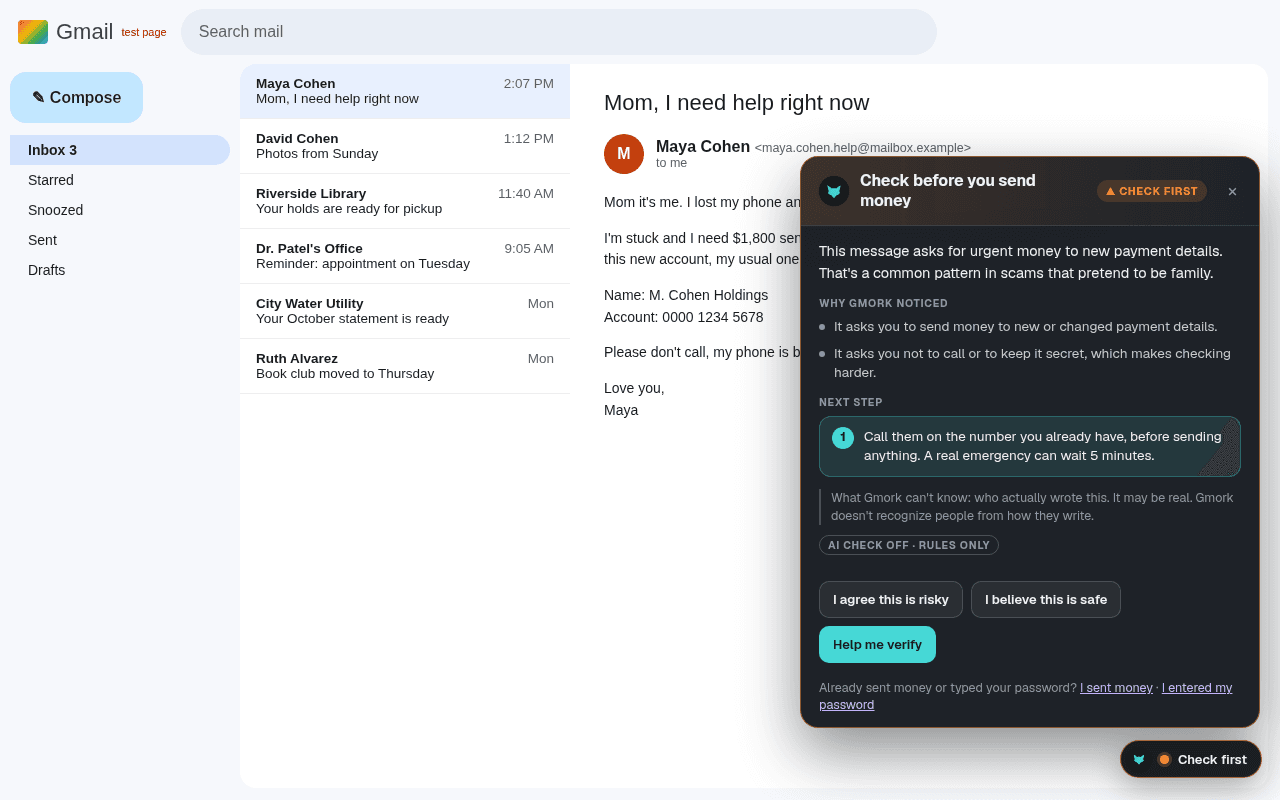
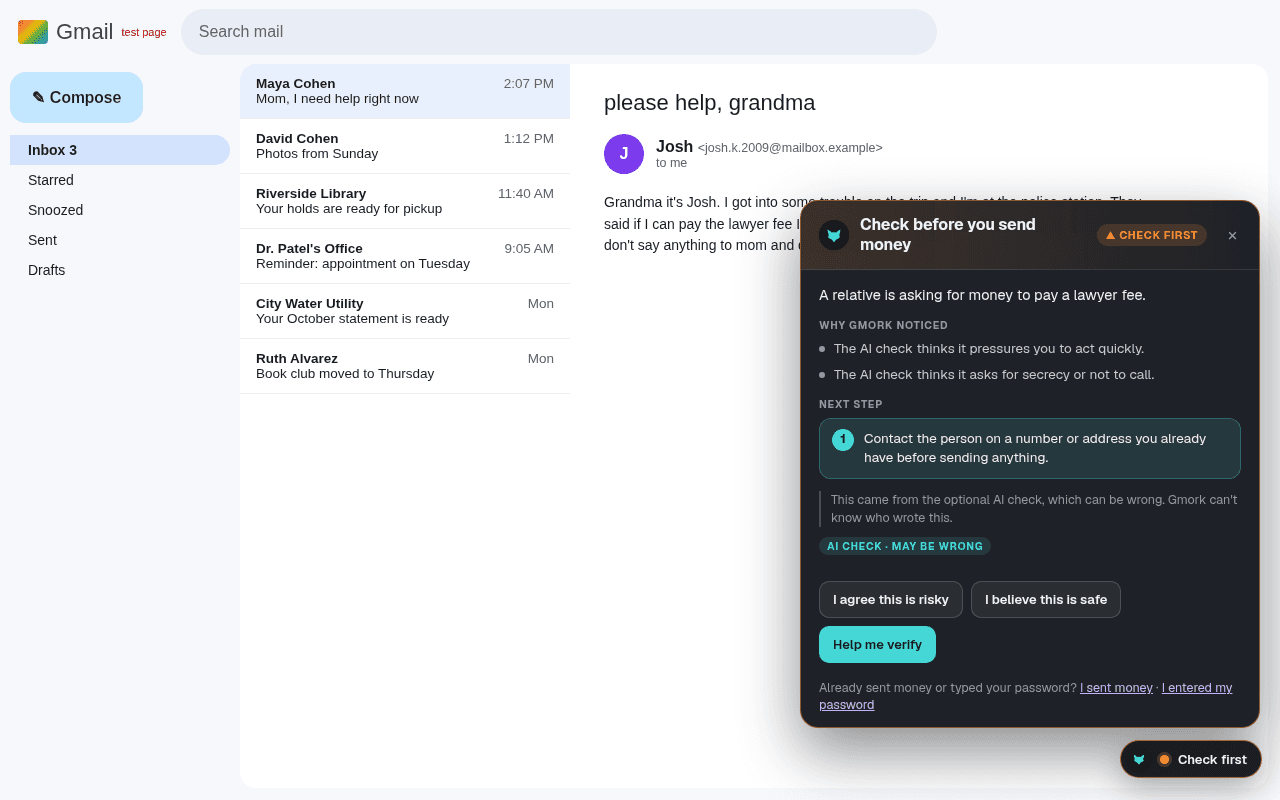
“Hi Mom, new number, I need money today, don’t tell Dad.” Gmork notices the pattern and suggests calling them on the number you already have.
 Gmork
GmorkGmork Scam Guard · browser extension
Gmork Scam Guard sits quietly in your web browser, like a patient security advisor. When something looks like a scam, it tells you in plain words what it noticed and what to do next, even when the message seems to come from someone in your family.
Want AI on every message? Try Plus free for 14 days
Using Microsoft Edge? Open the same store page, click Allow extensions from other stores, then Allow, and add it the same way.
Lost your license key? Get a new Gmork Scam Guard license key by email. The computers you already connected keep working.
Hi Mom, it’s me. I lost my phone, this is my new number. I need $1,800 today for a bill. Please don’t tell Dad, I’ll explain later.
This asks for urgent money and for secrecy. That’s a common pattern in scams that pretend to be family. Call them on the number you already have. A real emergency can wait five minutes.
Scams today look polished and personal. Gmork Scam Guard is for anyone who wants an extra layer of safety: parents and grandparents, busy people who read email in a hurry, and anyone who has ever thought “is this real?”. It doesn’t judge and it doesn’t nag. It stays quiet when things look normal and speaks up when they don’t.
What it does
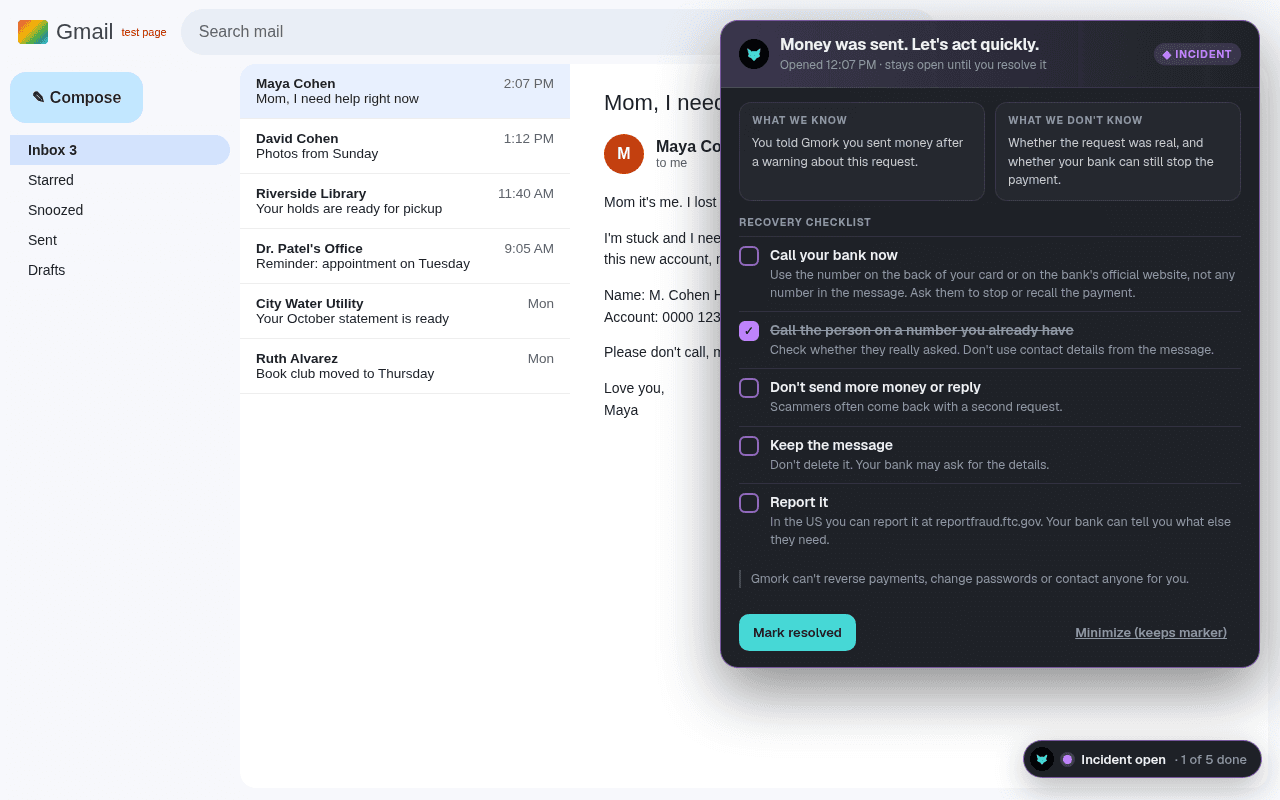
Each warning says what Gmork noticed, what it can’t know, and one calm next step.
“Hi Mom, new number, I need money today, don’t tell Dad.” Gmork notices the pattern and suggests calling them on the number you already have.
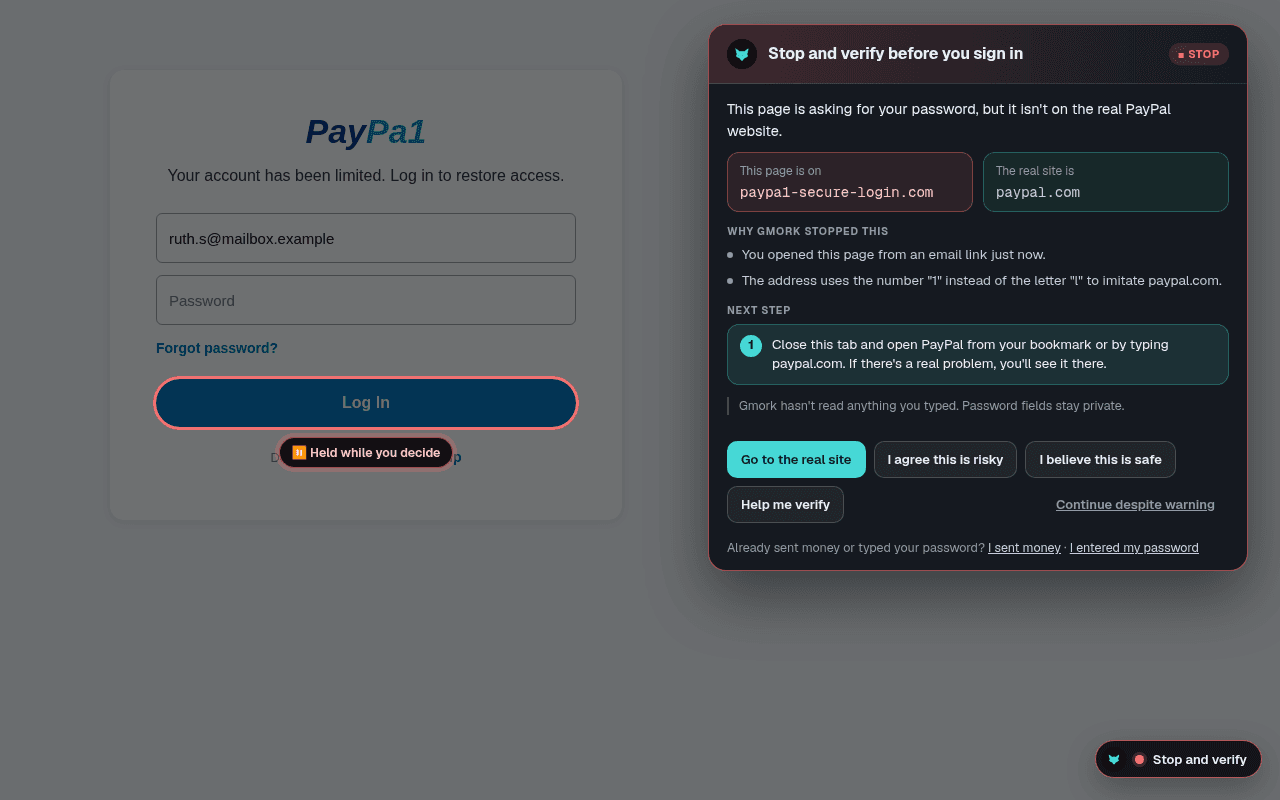
A page that looks like your bank, PayPal or Microsoft but is on the wrong address. Gmork holds the Sign in button while you decide.
Addresses that swap a letter or add a word, like paypa1.com or amazon-secure-login.com.
Urgent payments to new bank details, “pay today or else”, or “please don’t call me, just send it”.
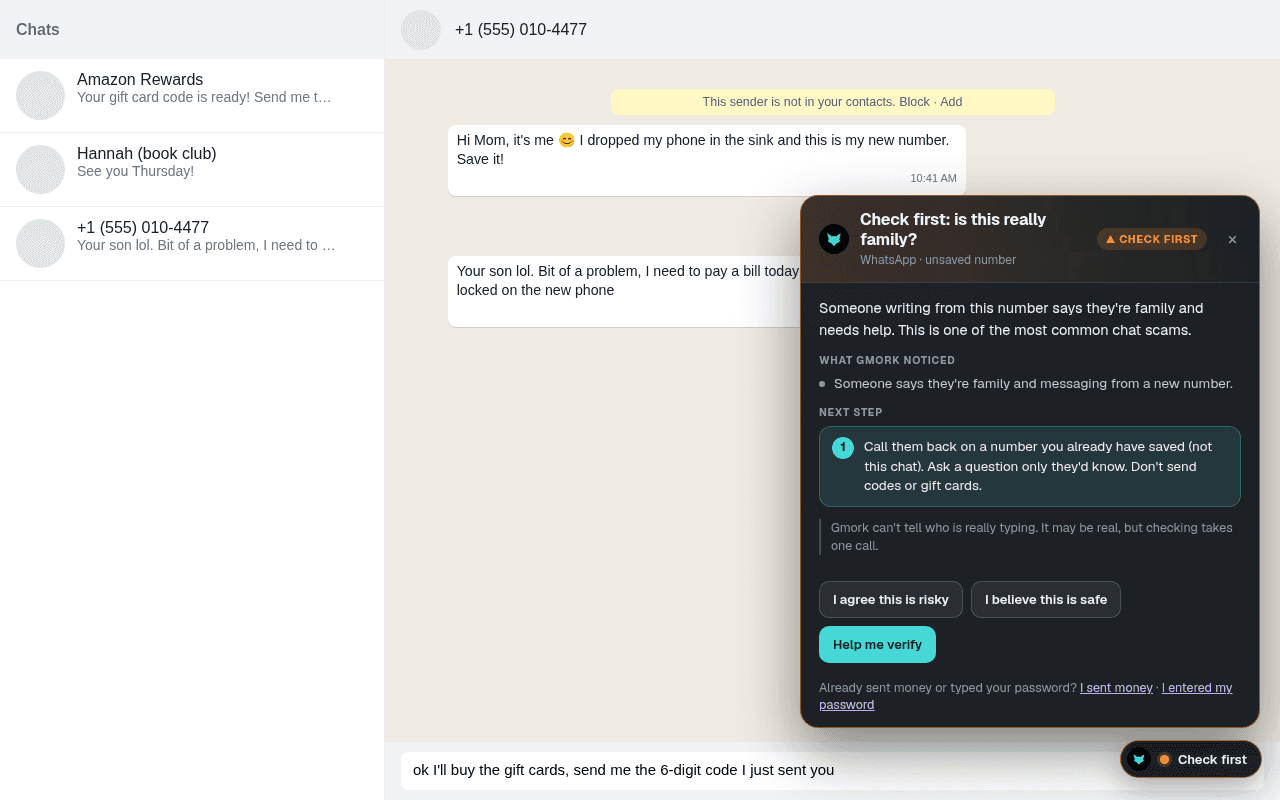
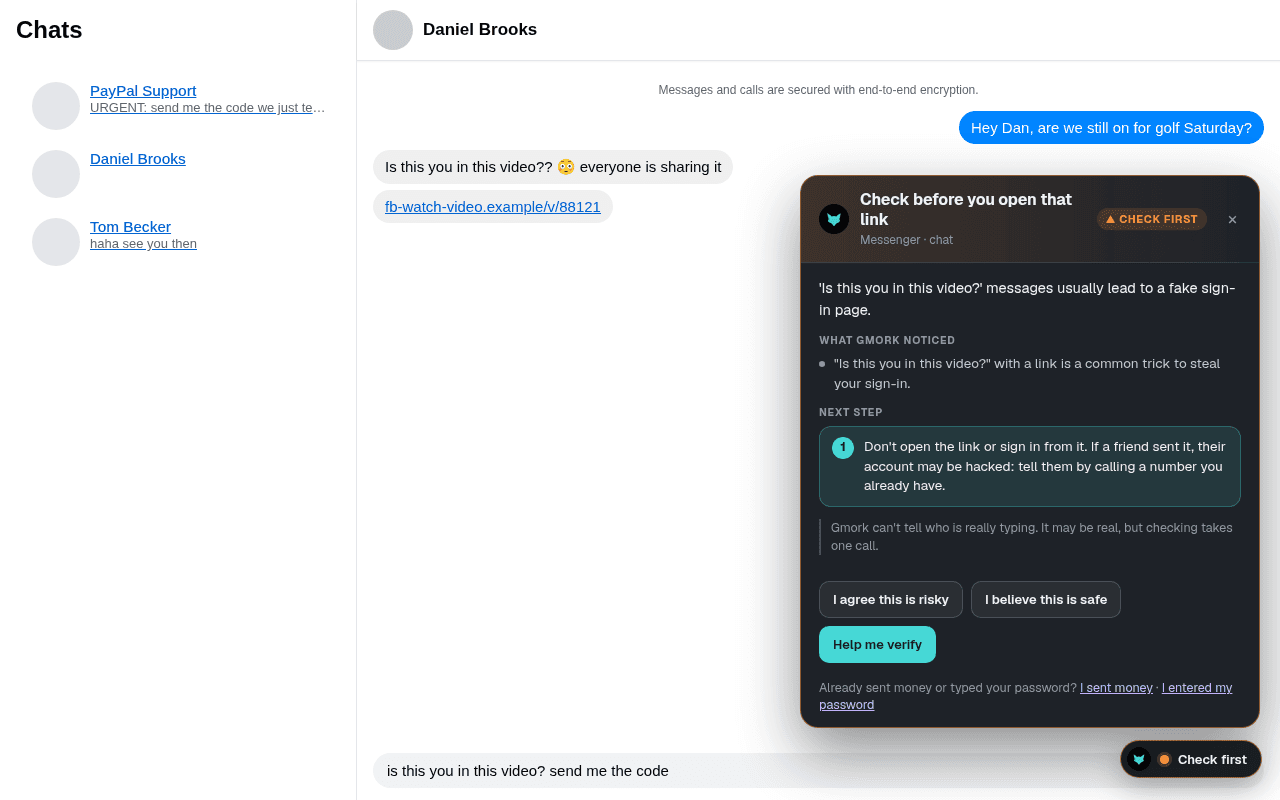
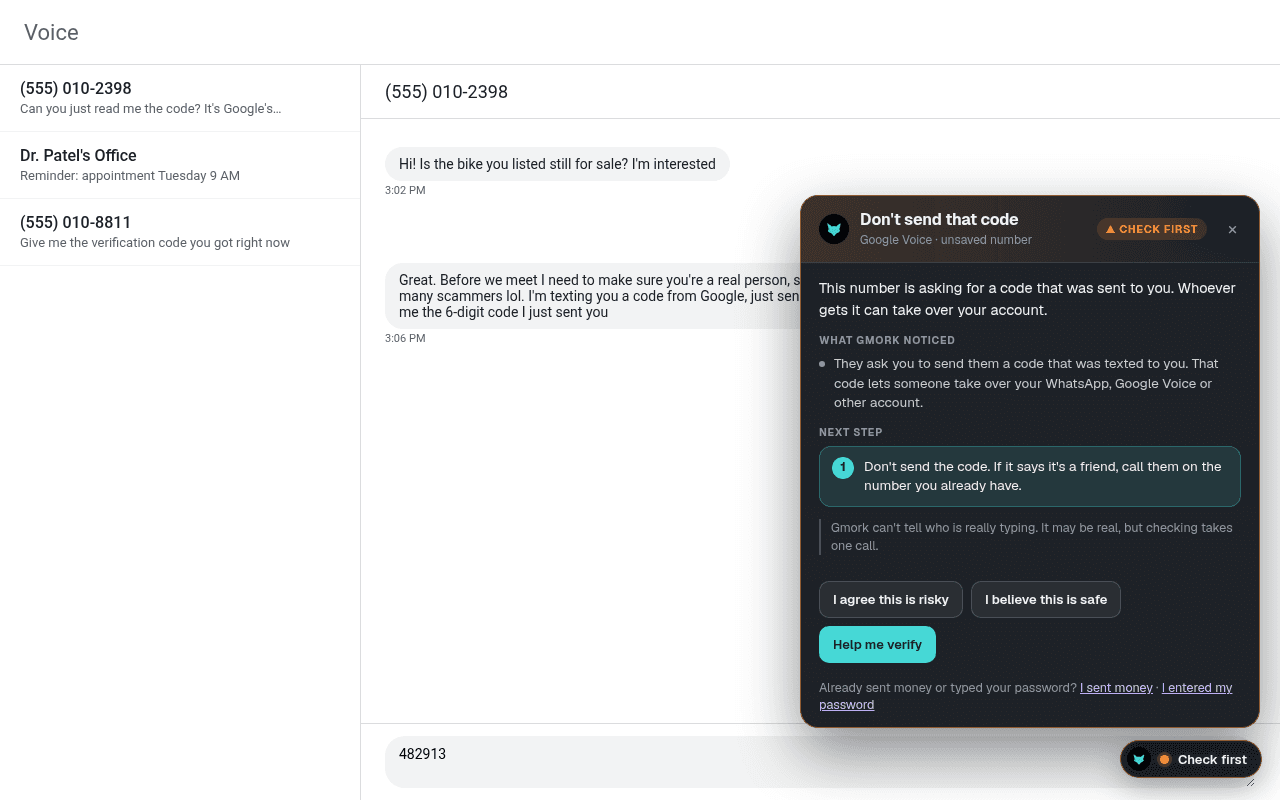
In Facebook Messenger, WhatsApp Web and Google Voice texts on your computer: “Hi Mom, new number”, “send me the code I just texted you”, and “is this you in this video?” links.
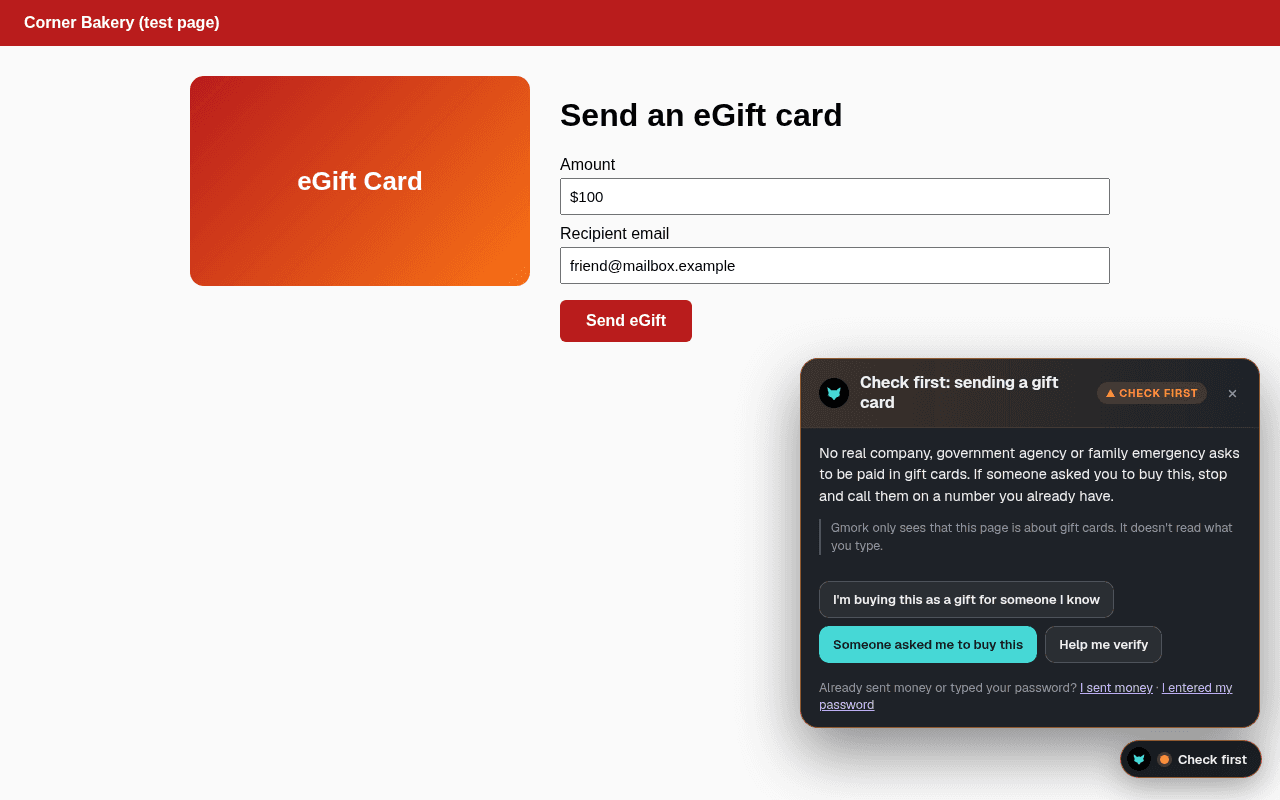
Any message asking you to buy gift cards or send their codes gets a warning. Before you buy or send a gift card online, Gmork shows a short “check first” note. Crypto demands too.
“Your computer is infected, call this number” pages, and requests to install remote-control apps like AnyDesk or TeamViewer.
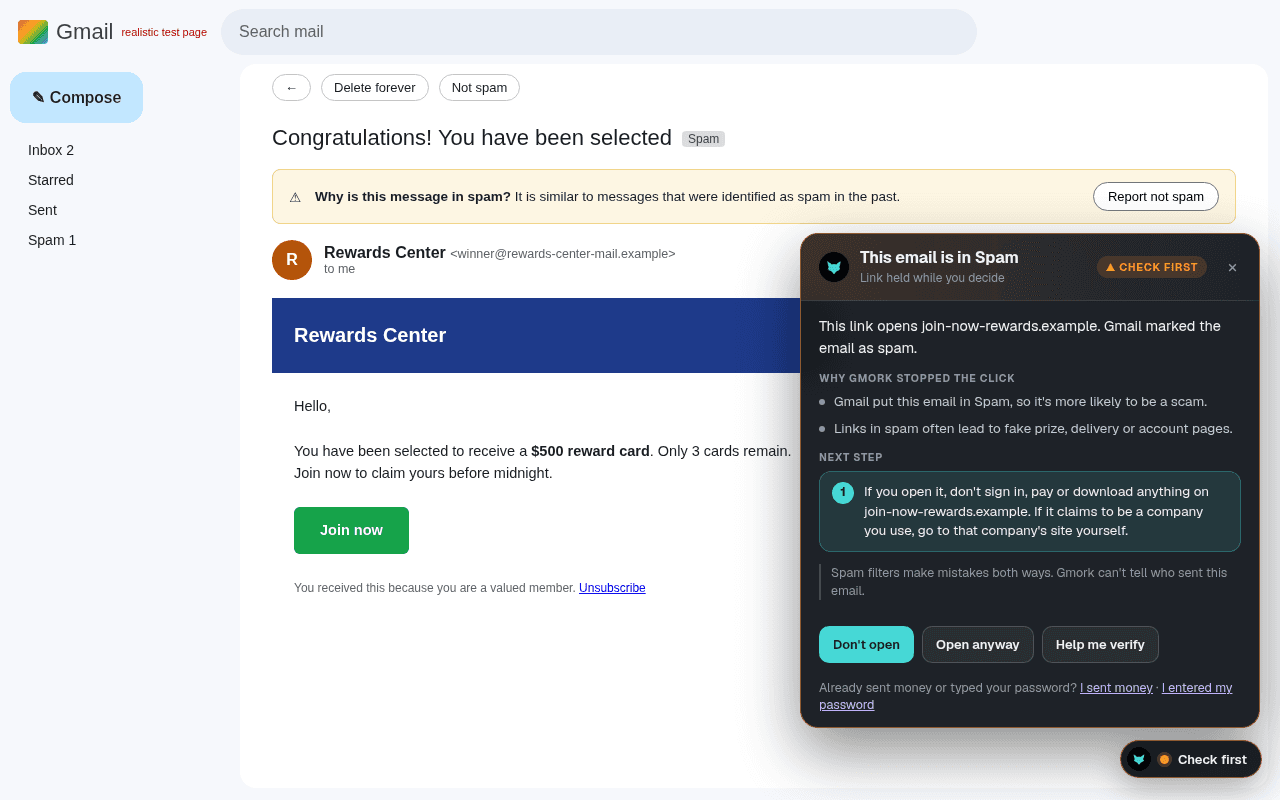
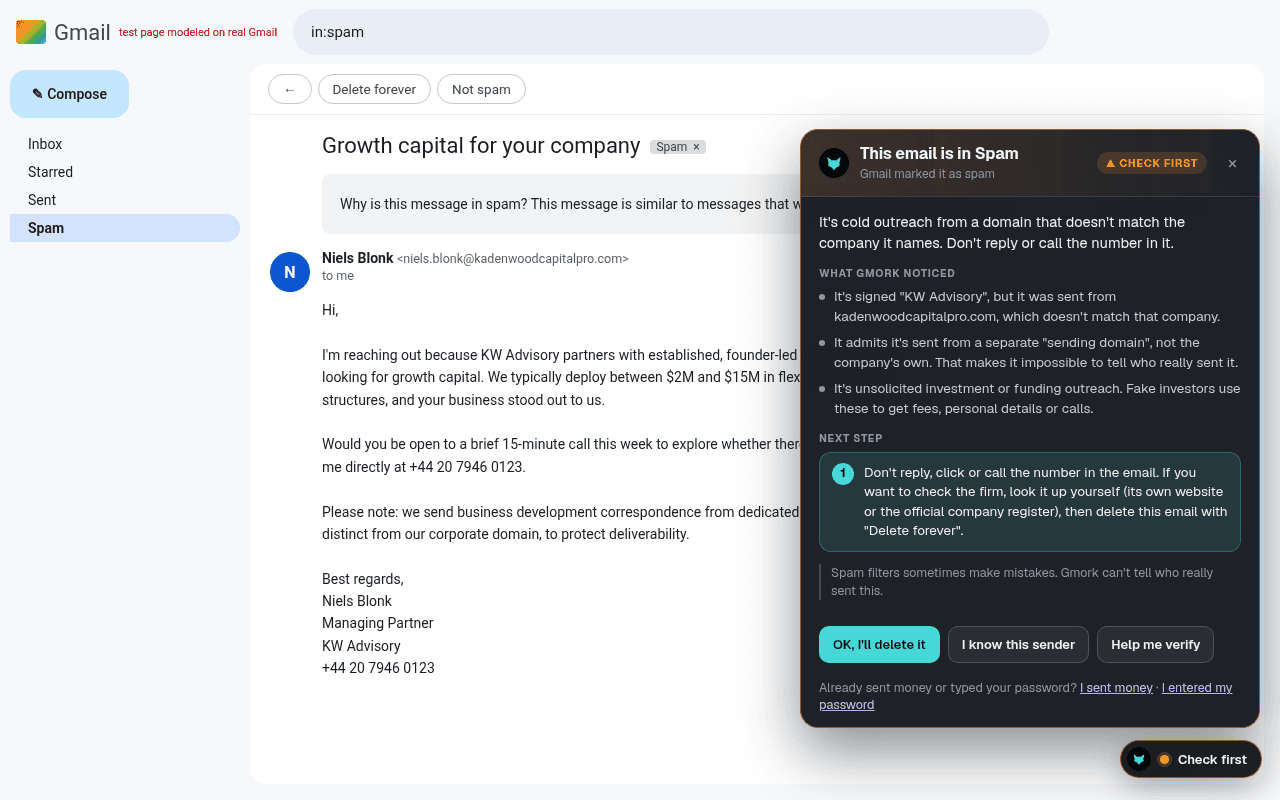
Links in emails your mail service put in Spam or Junk, and links whose text shows one website but go to another.
Messages asking you to read out a security code sent to your phone. Real companies never ask for that.
Big, plain warnings on fake virus pop-ups and pages that push AnyDesk, TeamViewer and similar apps. Gmork pauses those downloads and helps you leave full screen.
Optional: red warnings are spoken in your language, and every warning has a Read aloud button.
With the Family plan, a helper you choose gets a short email when Gmork shows a red warning. Only the kind of alert, the site's name and the time, never messages or pages.
A helper can set a PIN so red warnings can't be clicked away and settings can't be changed without it.
What it looks like
Real screenshots from our test pages, which are made to look like Gmail and common websites. All names and addresses are made up.
What it will tell you to do
Gmork warns you when something doesn't add up, looks suspicious, or needs a closer look. Then it suggests a simple, safe way to check:
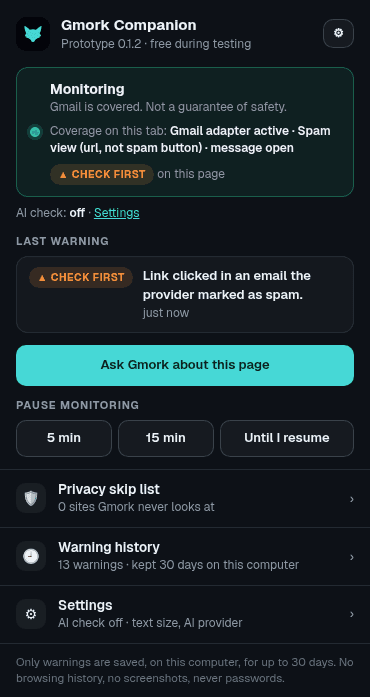
A small badge in the corner of the page shows what Gmork is doing. It is never green on a page Gmork can’t check.
How it works
Gmork’s built-in checks work inside your browser. The only thing they may look up is a sender’s bare domain name (like example.com), and you can turn that off.
On sign-in and payment pages Gmork reads the page itself (the name, the logo text, where your details would go) to spot fakes. Your passwords and card numbers stay private.
In Gmail and Outlook on the web, Gmork checks the one email you open. In Messenger, WhatsApp Web and Google Voice it reads the latest incoming messages in the chat you have open, never what you type. All on your computer.
If you turn it on, Gmork sends a cleaned-up copy of only the one open email or the latest incoming messages of the open chat through gmork.com, with email addresses, phone numbers and long numbers removed. Questions you type into Ask Gmork are cleaned the same way.
Our server never stores your messages or your browsing. It only counts how many checks were made each day. The AI provider (OpenAI) may keep a request for up to 30 days to check for abuse, then deletes it.
Gmork keeps a short list of the warnings it showed you, for 30 days (or less, you choose). No browsing history, no screenshots, never passwords.
Install
Gmork Scam Guard is in the Chrome Web Store. Installing takes a minute, and Chrome keeps it up to date for you.
Want AI on every message? Try Plus free for 14 days
Using Microsoft Edge? Open the same store page, click Allow extensions from other stores, then Allow, and add it the same way.
Lost your license key? Get a new Gmork Scam Guard license key by email. The computers you already connected keep working.
chrome://extensions.The Chrome Web Store can take a few days to offer the newest version (version 0.1.39 here). Need the zip for a manual install? Download version 0.1.39.
IT admins: to install it on every managed Chrome browser, force-install the extension ID dbmnbnmjhjaeagpimcnhlcgddfejakbo in the Google Admin console (Devices › Chrome › Apps & extensions), or with the ExtensionInstallForcelist policy. Microsoft Edge can use the same ID with its ExtensionInstallForcelist policy and the Chrome Web Store update URL.
Manual install (advanced / IT): zip file, version 0.1.39 · 874 KB
Helping a parent set it up
Setting it up at work
Same extension as at home. Workplace display keeps cards clear when the phone is ringing and a patient is waiting.
This is not a guarantee of HIPAA compliance. A Business Associate Agreement (BAA) is required before any AI use with patient health information (PHI).
Pricing
The on-device warnings are free for personal home use. Plus adds the AI check and Ask Gmork for $4 a month, and Family is $8 a month for up to 5 people. Using Gmork at work needs Workplace, from 5 seats for $25 a month. Every paid plan has a 14-day free trial, no card needed.
For one person
For home use · no account needed
For one person
or $4 a month
For one household, up to 5 people
or $8 a month
Compare plans
Why pay? Scammers invent new tricks every week. The built-in rules catch the known ones. The AI check gives a second opinion on messages that don’t match a rule yet, and Ask Gmork answers your own questions in plain words.
| What’s included | Free (home use) | Plus | Family |
|---|---|---|---|
| Price | Free forever | $4/mo or $40/yr14-day free trial, no card | $8/mo or $80/yr14-day free trial, no card |
| Who it covers | 1 person | 1 person | Up to 5 people |
| Unlimited on-device scam warnings | Included | Included | Included |
| Warning history on your computer | Included | Included | Included |
| AI second opinion on messages the rules aren’t sure about | 5 a day* | Included | Included |
| Ask Gmork with AI answers | 5 a day* | Included | Included |
| Family alerts to a trusted helper | Included |
Free includes 5 AI checks a day, shared by the AI check and Ask Gmork.
The AI check and Ask Gmork are optional and stay off until you agree. With HIPAA-safe mode on, AI is off for every browser on the Workplace license.
Free, Plus and Family are for personal, non-commercial home use. Any business use, including offices of 1 to 5 people, needs Workplace.
Workplace
Required for any business use, including offices of 1 to 5 people. AI on every seat, HIPAA-safe mode, IT alerts for the office, a seat dashboard and settings staff can’t turn off. Priced by seat; annual billing is two months free (pay for 10).
HIPAA-safe mode for healthcare offices How it works
IT alerts: your IT contact gets a short email when a staff computer shows a red warning or someone continues past one. Never the message or the page.
$25/mo
or $250/yr
$40/mo
or $400/yr
$60/mo
or $600/yr
$200/mo
or $2,000/yr
$1,000/mo
or $10,000/yr
For very large rollouts, write to us and we’ll set up a plan that fits.
Contact usPrices in US dollars, per person, household or seat. Full Scam Guard pricing
Questions
The on-device warnings are free for personal, non-commercial home use. Plus adds the optional AI check and Ask Gmork for $4 a month or $40 a year, and Family is $8 a month or $80 a year for up to 5 people. Try either free for 14 days, no card needed. Businesses need a Workplace plan.
No. Free, Plus and Family are for personal, non-commercial home use. Using Gmork in a business, a practice, a nonprofit office or any other commercial setting needs a Workplace plan, including offices of 1 to 5 people. Workplace starts at 5 seats for $25 a month and you can try it free for 14 days, no card needed. It adds AI on every seat, HIPAA-safe mode, a seat dashboard and settings staff can’t turn off.
Only the one email you have open in Gmail or Outlook on the web, or the latest incoming messages in the chat you have open in Messenger, WhatsApp Web or Google Voice. It checks them on your computer and never reads what you type. Your emails and chats never leave your computer unless you turn on the optional AI check. Then a cleaned-up copy of that email or those messages, with email addresses, phone numbers and long numbers removed, is sent through gmork.com for a second opinion.
No. On sign-in and payment pages Gmork reads the page itself (the title, the logo text, where the form sends your details) to spot fakes. It never reads what you type into the boxes.
Only counters. Once a day Gmork sends how many warnings it showed (by level and type) and how often you tapped “helpful”, “annoying” or “I changed what I was going to do”, with the extension version, language and plan. You can turn this off in Settings. With the AI check on, gmork.com also counts how many checks each install made and how much AI time they used. gmork.com never stores your messages, the websites you visit or who writes to you. The AI provider (OpenAI) may keep the request for up to 30 days to check for abuse, and then deletes it.
No. Gmork catches many common tricks, but scammers change their stories all the time. Treat it as expert advice, not a guarantee. If something feels wrong, stop and check with someone you trust, even if Gmork says nothing.
No one can tell that from the message alone, and Gmork doesn't try. It looks at what the message asks for. A new number, an urgent money request and “don’t tell anyone” together are a common pattern, so Gmork suggests calling them on the number you already have.
Facebook Messenger (messenger.com and chats on facebook.com), WhatsApp Web and Google Voice texts, when you use them in Chrome or Edge on a computer. It checks messages in 13 languages (plus Russian), and only the incoming messages in the chat you have open. It never reads what you type.
Because gift cards are how most impersonation scams get paid. No real company, government agency or family emergency asks to be paid in gift cards. If you're buying one as a present, tap “I'm buying this as a gift for someone I know” and Gmork stays quiet on that shop until you close the browser.
Not yet. Gmork Scam Guard works in Google Chrome and Microsoft Edge on a Windows, Mac, Chromebook or Linux computer. Phone and tablet apps are not covered, including WhatsApp, Messenger and Google Voice on your phone, and neither are desktop programs such as the Outlook app or the WhatsApp app.
Yes. Open the Gmork Scam Guard page in the Chrome Web Store and click “Add to Chrome”. Microsoft Edge can install it from the same page: click “Allow extensions from other stores” first. Chrome and Edge keep it up to date automatically. IT teams can still use a zip for a manual install, linked in the install section of this page.
That is Chrome's standard wording for any extension that checks the pages you visit. Gmork needs it to notice a fake sign-in page or a risky link wherever it appears. Gmork doesn't save your browsing history, screenshots or passwords. It only keeps a short list of the warnings it showed you, on your own computer.
Yes. Click the fox in the toolbar and pause for 5 minutes, 15 minutes or until you turn it back on. You can also add sites Gmork should never look at, like your doctor's portal.
Yes. Workplace plans include HIPAA-safe mode for healthcare offices. The plan owner turns it on once in the Scam Guard dashboard and it applies to every browser on the license; staff can't switch it off. With it on, the AI check and Ask Gmork are off and only the built-in local rules run on each computer. The only things that leave the browser are bare domain names (like example.com) for sender and link checks, and the daily warning counts. Gmork's server also refuses AI requests from those browsers. What it doesn't do: HIPAA-safe mode is not a HIPAA certification and doesn't make your office compliant on its own. A Business Associate Agreement (BAA) is required before any AI use with patient health information (PHI). Check with your compliance officer before you roll it out.
Free for home use, with AI help from $4/mo. Workplace for businesses, with a 14-day free trial. Chrome and Edge on a computer. It takes about a minute to install.